Translating existing pages
How to translate existing pages
Creating a page in an additional language variant involves several steps:
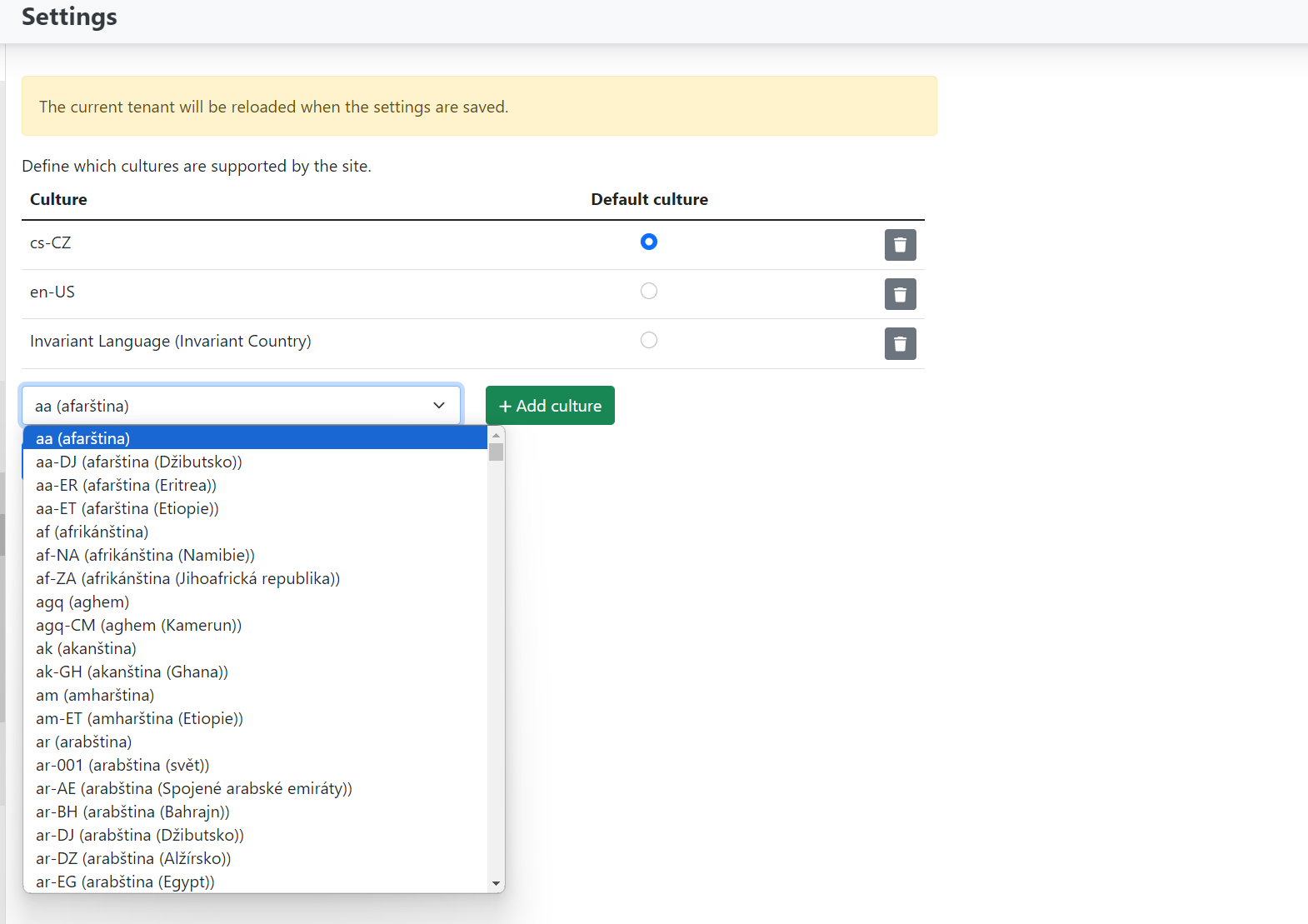
- In the localization settings, add the culture (if not already present):
- Configuration → Settings → Localization → Cultures
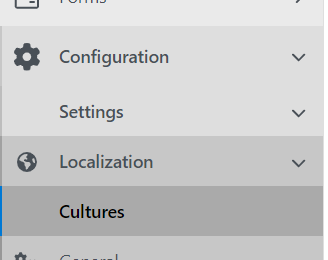
If only the default language Czech (cs-CZ) or English (en-US) is enabled, you need to add another language. Note: do not change the default language once it is set. Select the desired culture from the drop-down and save.
- Now go to Content items and select the page you want to localize – translate into the given culture.
On the selected page in the overview there is a "Localizations" dropdown. After expanding it, the cultures you selected in settings will be offered.

Clicking on the selected language creates and opens the page already prepared in that language (a message confirming the creation of the localized page will appear at the top).
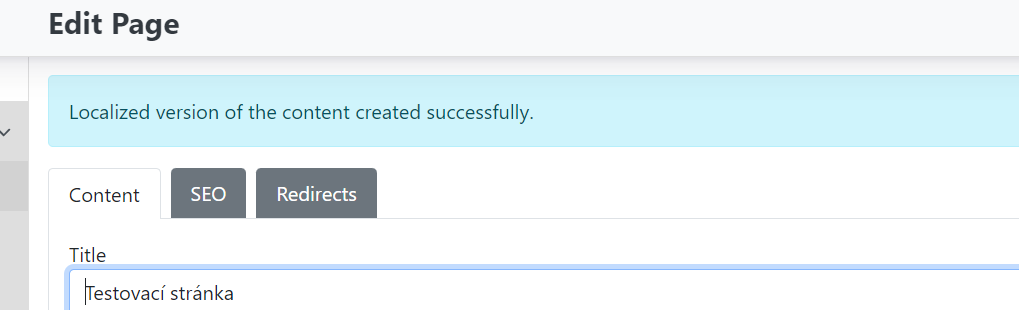
- Now edit/translate the page Title, page alias, widget content, etc. Before saving, also check "refresh path" so that the URL is set to the new culture, and save.
A localized version of the page has now been created. In the content items page overview, we can see that each page also has a label with its culture.
