zalozeni-stranky-a-jeji-sprava.tex
Creating a page and its management
New pages are created under Content → Content items.
You can prepare new pages either by copying an existing page or by creating a completely new page.
-
Create a new page
- In the
Content → Content itemssection, clickNewand select thePagetype.
- In the
-
Fill in the individual fields
- Title:
- Enter the page name.
- It will be used as the main heading and as the basis for other fields.
- Alias:
- Serves as an internal content identifier (e.g. for the URL).
- Leave the field empty – the system will set it automatically based on the name after the first save.
- Permalink:
- The page address, generated automatically based on the alias.
- Do not fill in manually.
- Refresh the path:
- Click if you have changed the page name or URL structure.
- The system will regenerate the resulting path.
- Page Category:
- Select the page category.
- Detail Image:
- Set the image that will appear in the page detail.
- Not required – if none is selected, no image will be used.
- Preview Image:
- Select a thumbnail image for display in listing views.
- Content:
- Insert the main page content.
- You can write text or insert widgets.
- Title:
-
Switch the language variant
- If you are using a multilingual website, switch to another language via
Current Cultureand create a translation of the page.
- If you are using a multilingual website, switch to another language via
-
Check the creation date
- The
Createdfield shows the date the page was created. - Useful for sorting or content management.
- The
-
Save the page and verify it is displayed correctly
- Click
Saveand check that the page is displayed correctly on the website.
- Click
Copying an existing page
In the content section, find or search for the page you want to copy. The decision depends on your goal. If you have an existing page that you only want to copy content-wise or edit, copying the page is the better approach. Be careful about the type of page you are copying (page type). Each page type is used in specific cases.
To copy a page, find the specific page and using the "actions" button select clone.
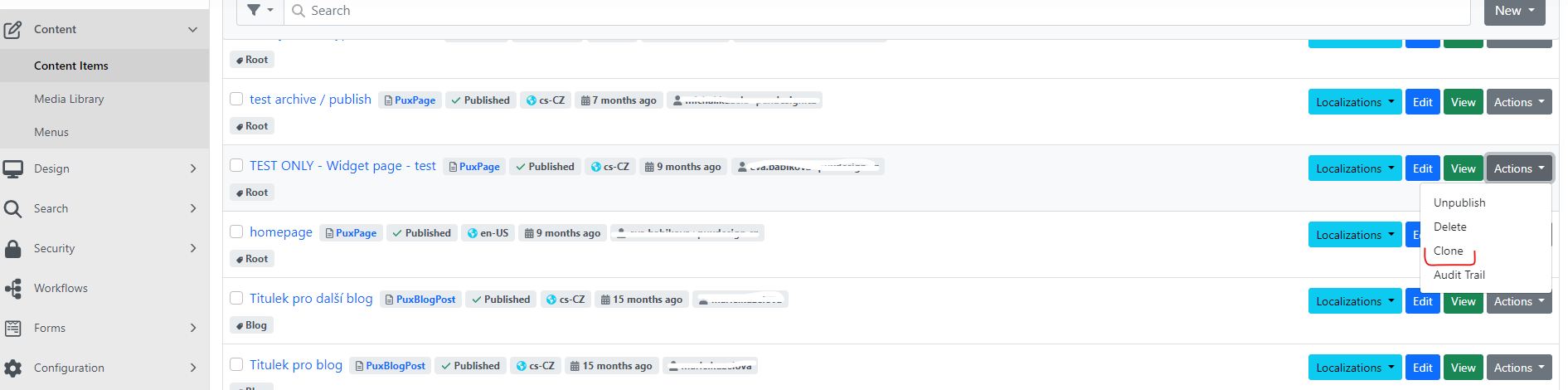
After clicking clone, a copy of the original page is immediately created and saved as a draft.

You can preview the draft page using Preview draft or edit it using Edit.\
-
Edit the alias
-
Create entirely new pages
Create them again in content items – next to the search field there is a "new" dropdown with several options.
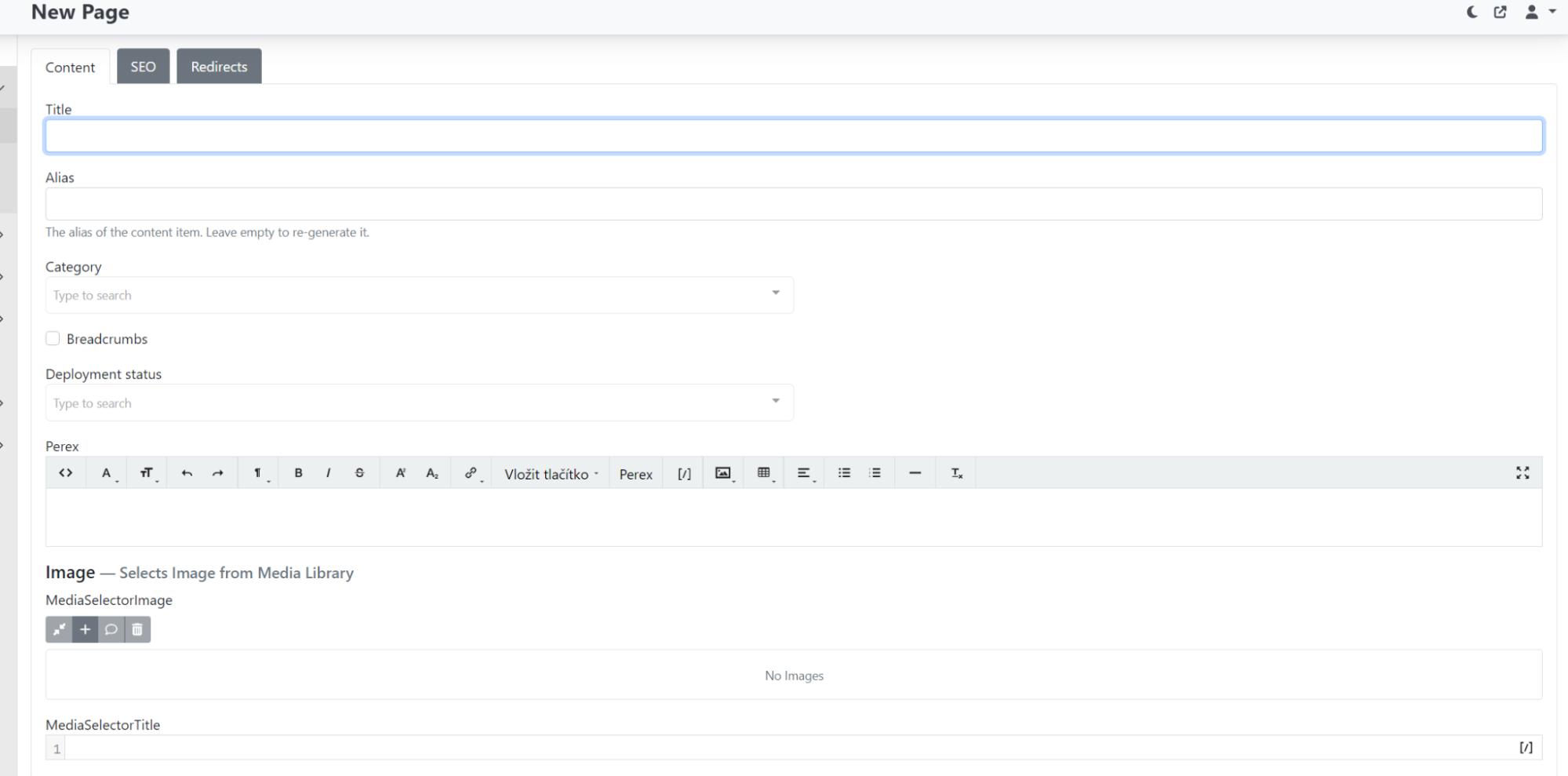
In the content section fill in:\
-
Title – the name of the page in the CMS,
-
Alias (can be left empty, it can be changed later),
-
Category – select the page category (whether it is a regular page, blog post, product detail, etc.),
-
Breadcrumbs (checkbox to show/hide breadcrumb navigation),
-
Page perex,
-
Image.
SEO
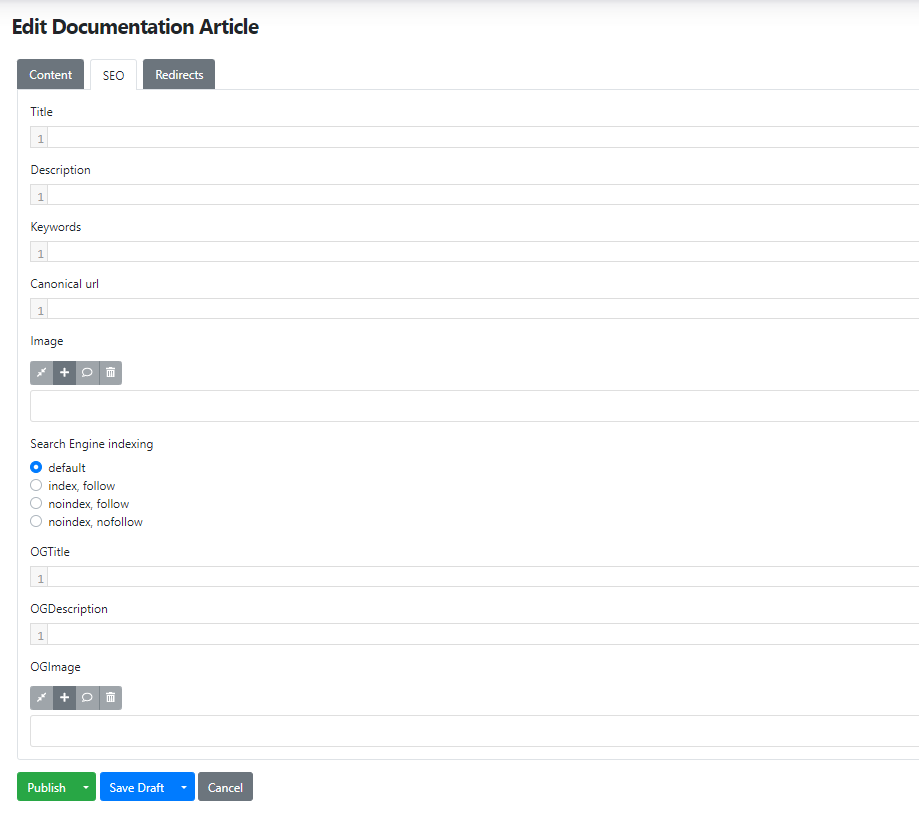
In the SEO tab you can enter custom metadata for individual pages.
Fields available for each page individually:
title, description, keywords, canonical url, image, search engine indexing, ogtitle, ogdescription, ogimage.
Sections and widgets – set up on the page using the blue "+" symbol.
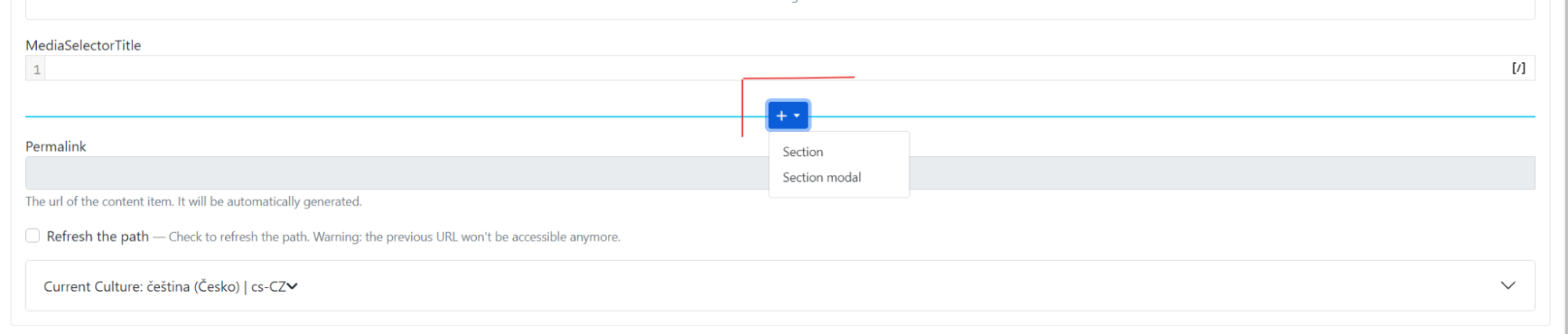
The most commonly used option here is "Section".
After selecting a section, you can choose individual widgets for that section according to the desired display on the website.
Permalink – do not fill in, it is generated automatically.