cache-reset.tex
Cache reset
Publishing a page, draft pages and cache reset
Cache reset
In some cases it may be necessary to clear the cache to correctly load changes in the layout or other system parts. This typically happens when editing any page or widget that is stored in cache. If a change does not appear immediately, perform a manual cache reset.
Cache means clearing or refreshing the temporary memory (cache) used on the website to store and quickly load certain information. Cache is used to optimize website performance by storing already loaded and processed data so it does not have to be repeatedly downloaded from the server.
For CMS version 1.8 and above, it is sufficient to publish Global Widgets to clear the cache. No changes are needed – simply publish.
During development or when editing a webpage, it may occasionally be necessary to perform a cache reset to ensure users see the latest and current version of the content. This happens at deployment, or we can reset the cache directly in the CMS.
Page draft
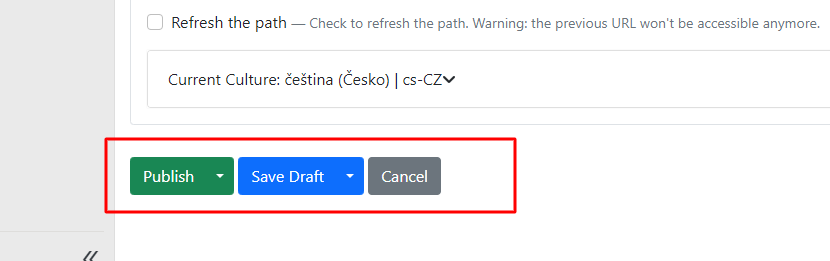
Prepared pages in the content section are saved either as a draft or published directly.
It depends on whether you want to display the changes to website users immediately, or whether you want to continue editing the page.
If you save the page as a draft, the original published content on the website will not be overwritten. The new changes will remain saved in the page in the CMS.
You save a draft in two ways:
-
save draft,
-
save draft and continue.

If you choose save draft: after saving, you will be taken back to the list of all pages in content items. Choose this option when you have finished working on the draft and will continue working elsewhere.
Save draft and continue: you make changes to the current page but can continue editing within the draft. Saving will not redirect you back to the page list in content items.
Publishing a page
If you want to publish the changes to the page immediately on the website, choose one of the options: publish or publish and continue.

If you choose publish: the content will be immediately changed on the live website and you will be redirected from the page editor back to the page overview in content items.
Publish and continue: the changes to the page content are published immediately on the live website, but you can continue editing the current page (similar to save draft and continue, you will not be redirected back to the page list in content items).