media-library.tex
Media library
Media library is a media repository where you upload files such as: images, logos, animations, videos, and PDF files. These are all the files you can use on the website.
In the administration, find the media library under Content / Media library.
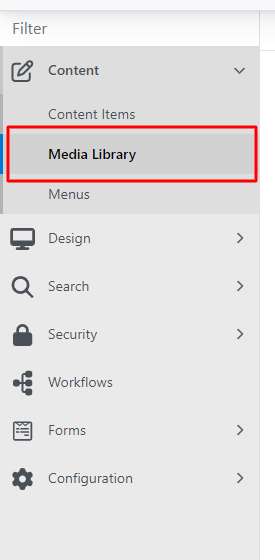
The media library then looks as follows:
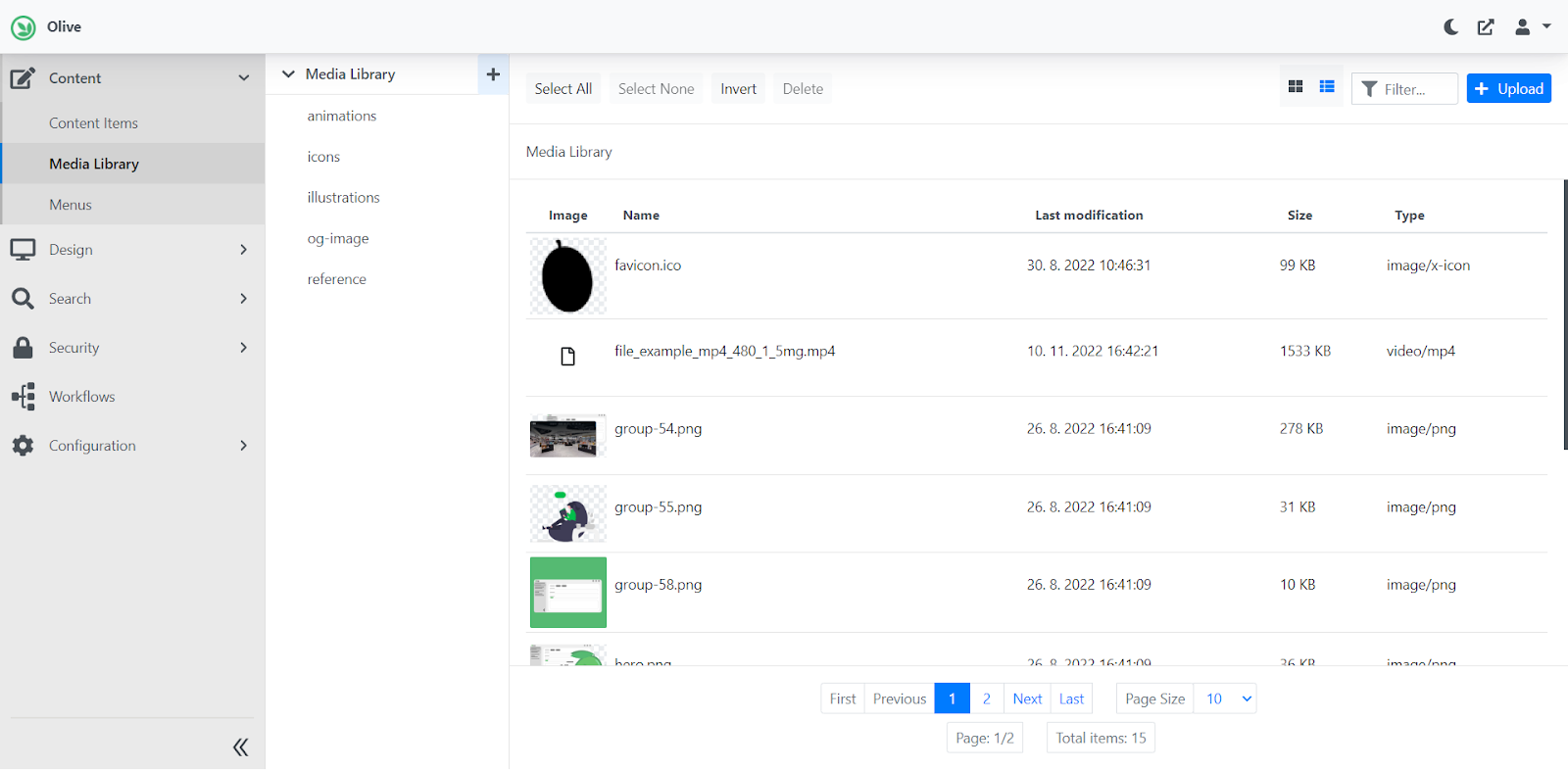
Editing / viewing the environment
Files can be uploaded to the library using the upload button in the top right corner.
You can also upload files by selecting them in a folder on your computer and dragging them over the media library window.
You can also filter files – by entering the file name or extension in the filter field.
The display of uploaded files can be switched from a classic list to a grid. Make the change using the two icons on the row next to the filter field.
Files can be bulk-edited using – select all/select none – and then for example deleted using delete.

Creating subfolders
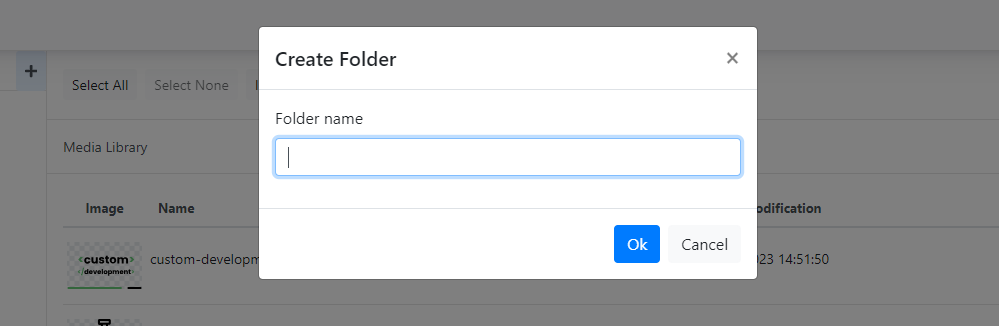
Within the library you can create subfolders using the '+' icon.

Enter the name for the new folder and save the changes.\
If you want to display all files in the media library, i.e. from all folders, simply click the arrow down.

To delete a folder, simply click on the folder you want to delete and then click the trash icon.\
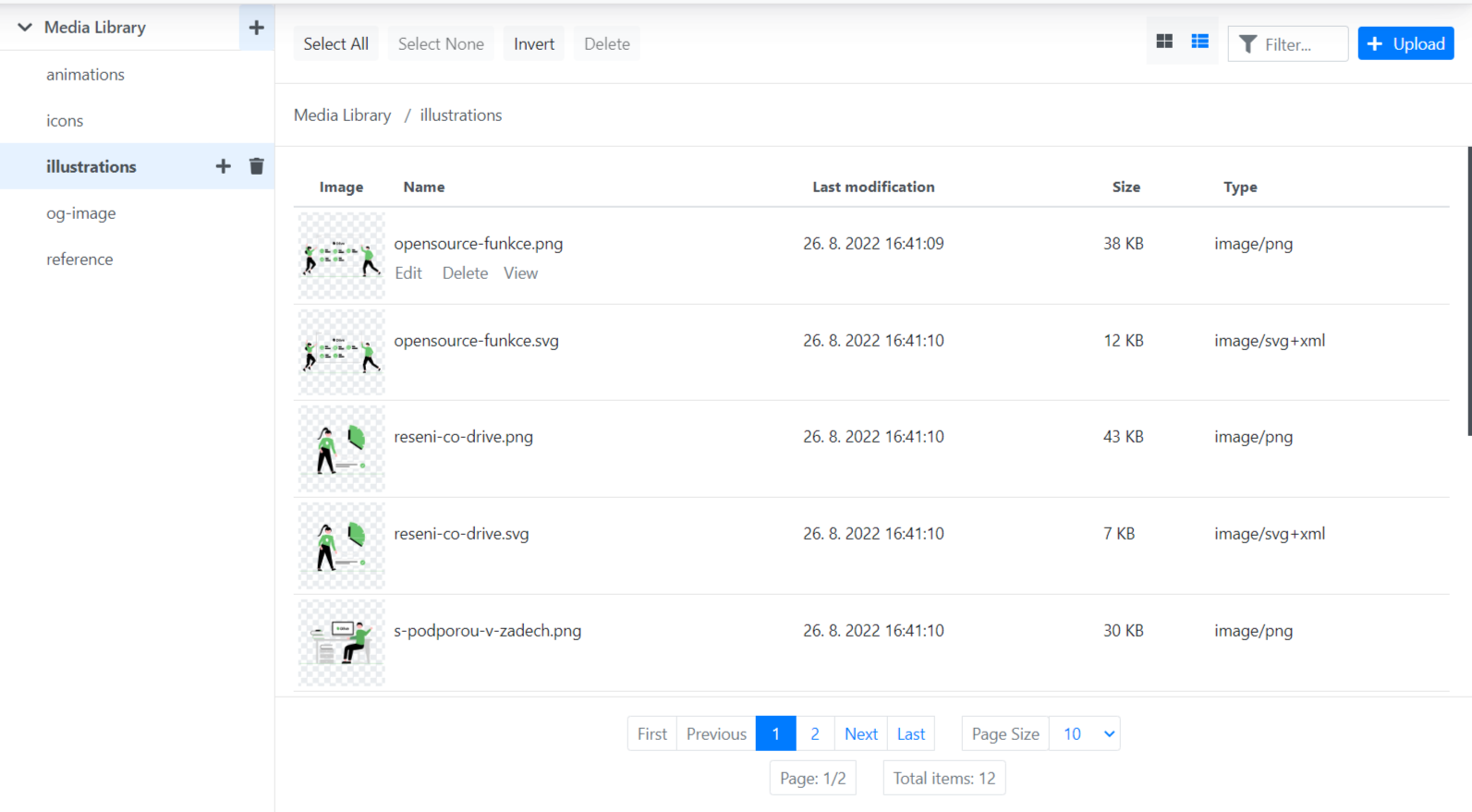
Editing individual files

For each file we have 3 options:
-
Edit – used to edit the file name
-
Delete – used to delete the file
-
View – used to display the file in a new window
You can move files using Drag & drop – by dragging the file with the mouse.