users.tex
Users
Users are created and managed in the Security → Users section.
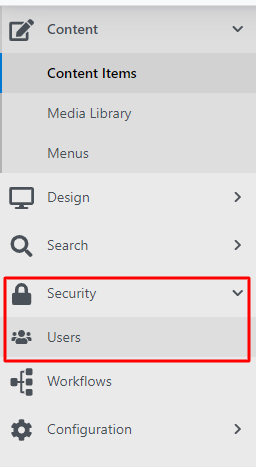
Clicking on Users takes you to an overview of all current users who are registered on the website.
The overview can be filtered using:
-
show – filtering displays enabled/disabled users.
-
Sort – changes the sorting of users by email or name.
Individual users can be managed using several buttons:

-
Edit – edit the user, their roles and password, see below.
-
Delete – you can delete the user from the administration.
-
Edit password – set a new password here.
Creating a user
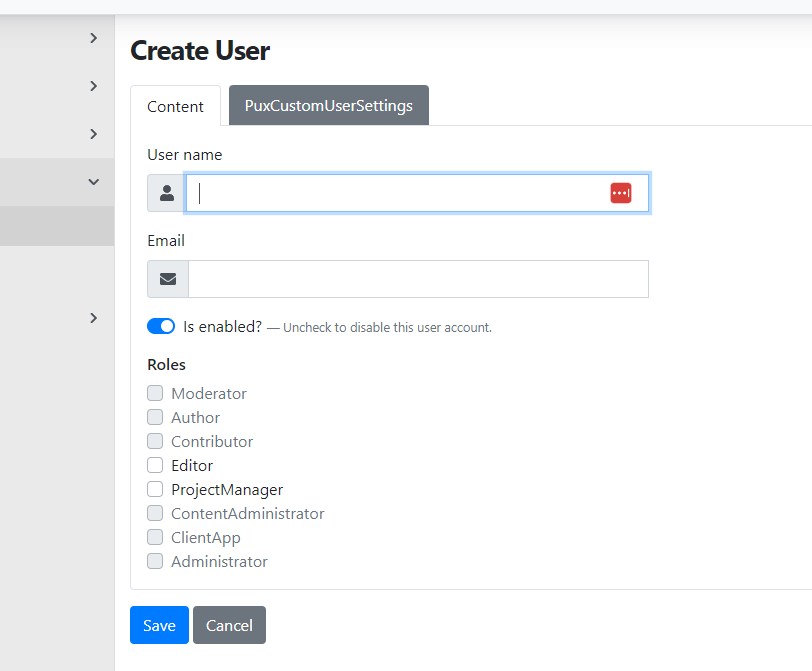
Create a new user using the "Add user" button in the top right corner above the user list.
You will be taken directly to the user settings, where you need to fill in:
-
User name – the name of the user (enter without diacritics).
-
E-mail – the user's email address.
-
Is enabled – here you can activate or deactivate the user's account.
-
Role – in this section you assign the user's roles. Most commonly editor or project manager, or administrator.
Roles
Based on the assigned role, the given user can see and/or edit limited areas within the CMS.
Available roles:
-
Editor – has permission to edit content and publish articles.
-
ProjectManager – responsible for planning and managing projects.
-
Administrator – has full access to the system and its settings.
-
Helpdesk – provides user support and resolves incidents.