Widget - Project map
This guide describes how to create and edit the project map widget.
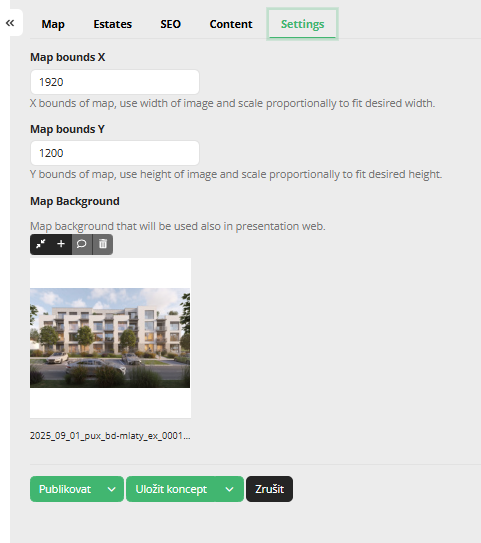
- To change the background image, navigate to the Settings tab.
- Keep the preset image dimensions to prevent the map from distorting on the website.
- Edit the active areas in the Map tab.
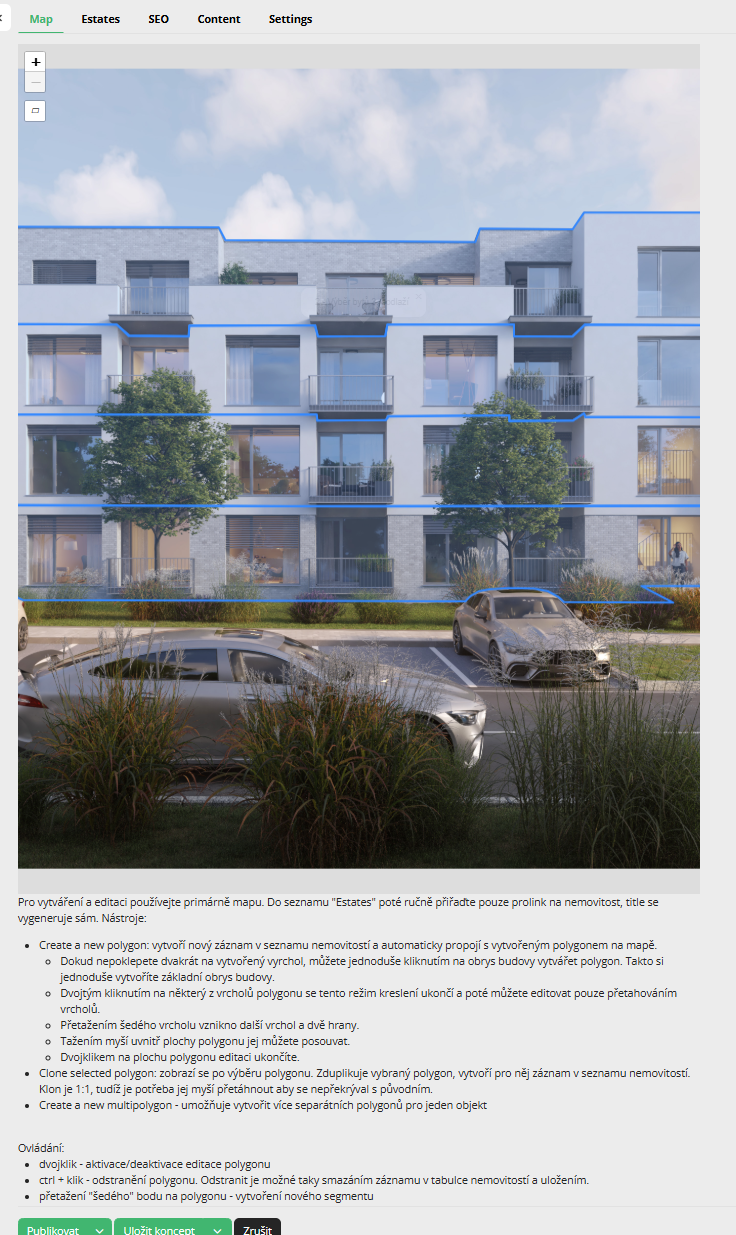
- At the bottom of the configuration, a detailed guide for creating and editing active areas is available.
- Hovering over an existing area displays its name; use it to find the corresponding entry in the Items tab.
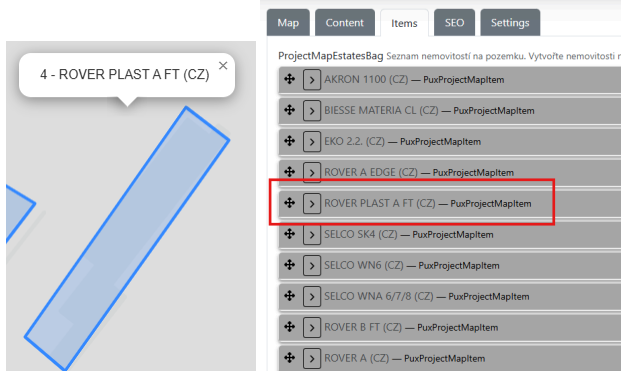
- A newly created area is appended to the end of the list in Items.
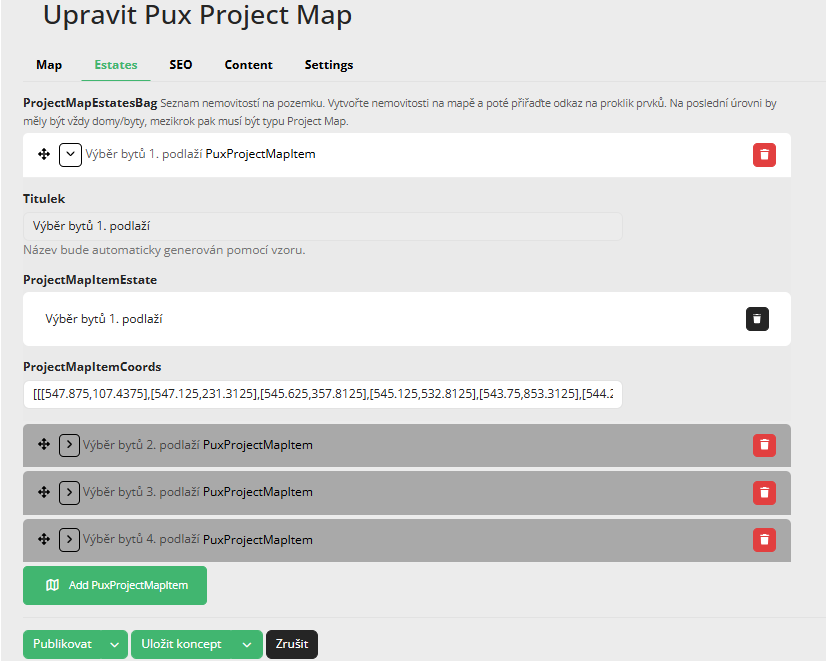
- In the ProjectMapItemEstate field, select a product; after saving, the product name will be populated into the Title field.
Publishing and cache
- After publishing, changes are automatically reflected on the project map page.
- If changes do not appear, save Global Widgets again (this will overwrite the cache).
- Then wait approximately 10–15 seconds and refresh the page.